How to Install on Samsung & LG Smart TVs – Full Guide
How to Install on Samsung and LG Smart TVs (2025 Guide)
Looking to install IPTV on your Samsung or LG Smart TV? This updated 2025 guide covers the 5 easiest and most reliable methods to stream IPTV on both platforms. With built-in app support, Smart TVs make it simple to enjoy live TV, movies, and sports — especially when using a top-rated provider like Urtvstream.
1. Smarters Player (via Tizen Store)
- Open the Samsung Smart Hub
- Search for “IPTV Smarters Player”
- Install and launch the app
- Choose “Login with Xtream Codes API”
- Enter your Urtvstream server URL, username, and password
2. Smart (SIPTV)
- Install from Samsung App Store or manually sideload
- Launch and note MAC address
- Visit siptv.app/mylist/ to upload your M3U link from Urtvstream
- Restart app to load full playlist and EPG
3. OTT Navigator
- Sideload APK to Samsung via USB or Smart Hub developer mode
- Login with M3U or Xtream API from KroozTV
- Customize UI and channel sorting
4.STBEmu on Samsung Smart TV
- Go to Settings > Smart Hub > Apps.
- Enter PIN code (default is
0000). - Enable Developer Mode.
- Enter your PC’s IP address and restart the TV.
- Install with:
- Tizen SDK tools
- Samsung Certificate Manager
- Open Tizen Studio > Certificate Manager.
- Create a new Samsung certificate for app signing.
- STBEmu is not officially made for Tizen, so you’ll need a web-compatible .wgt file (or package your own using the Android version as a webview).
- Alternatively: use an IPTV web player launcher or IPTV Smarters Player Tizen (available unofficially in .wgt format).
- Connect TV and PC to same network.
- Open Tizen Studio > Device Manager > Connect your TV (using IP).
- Deploy the
.wgtfile:- Right-click your project > Run As > Tizen Web Application.
- Go to Apps.
- You should see your sideloaded IPTV app.
- Open it and configure your IPTV portal URL (MAG setup).
Once the app is installed:
- Open STBEmu.
- Choose “Configure”.
- Set:
- MAC address (starts with
00:1A:79...) - Portal URL:
http://your-iptv-server.com/c
- MAC address (starts with
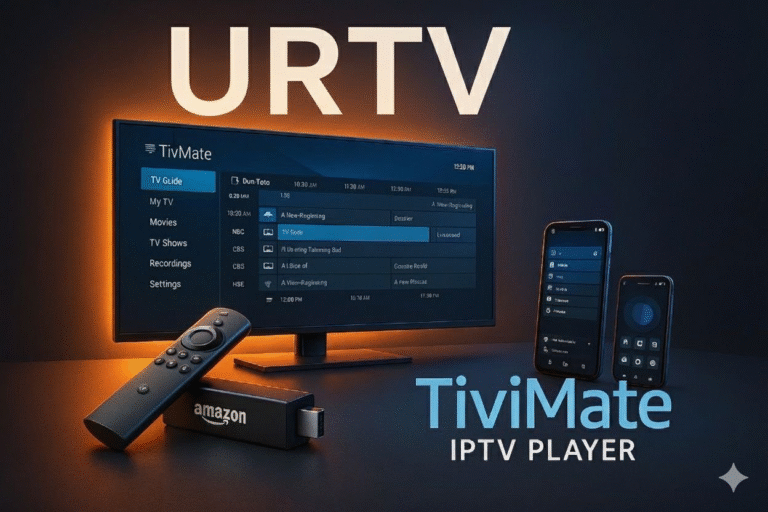
5. IPTV via External Android Device (Firestick/Android TV Box)
- Connect a Firestick or Android box to HDMI
- Install IPTV apps like TiviMate or IPTV Smarters Pro
1. IPTV Smarters Pro (LG Content Store)
- Open LG Content Store
- Install IPTV Smarters Pro
- Login with Xtream Codes credentials from Urtvstream
2. SS IPTV
- Install from LG App Store
- Open to get connection code
- Visit ss-iptv.com to upload Urtvstream M3U
3. WebOS Browser Portal
- Go to Settings > Smart Hub > Apps.
- Enter PIN code (default is
0000). - Enable Developer Mode.
- Enter your PC’s IP address and restart the TV.
- Download Tizen Studio from https://developer.tizen.org.
- Install with:
- Tizen SDK tools
- Samsung Certificate Manager
- Open Tizen Studio > Certificate Manager.
- Create a new Samsung certificate for app signing.
- STBEmu is not officially made for Tizen, so you’ll need a web-compatible .wgt file (or package your own using the Android version as a webview).
- Alternatively: use an IPTV web player launcher or IPTV Smarters Player Tizen (available unofficially in .wgt format).
- Connect TV and PC to same network.
- Open Tizen Studio > Device Manager > Connect your TV (using IP).
- Deploy the
.wgtfile:- Right-click your project > Run As > Tizen Web Application.
- Go to Apps.
- You should see your sideloaded IPTV app.
- Open it and configure your IPTV portal URL (MAG setup).
Once the app is installed:
- Open STBEmu.
- Choose “Configure”.
- Set:
- MAC address (starts with
00:1A:79...) - Portal URL:
http://your-iptv-server.com/c
- MAC address (starts with
4. Smart IPTV via USB or App Store
- Install Smart IPTV from LG store
- Upload playlist using MAC at siptv.app/mylist/
5. Use Plex with IPTV Plugin
- Install Plex on LG
- Configure m3u plugin on Plex Media Server
- Stream via Plex client on your TV
- TiviMate
- Smart IPTV
- IPTV Smarters Pro
- SS IPTV
- Plex
- Xtream Editor
- IPTV Reddit
- WebOS Developer
- Samsung Tizen
- Kodi IPTV Plugin
*Disclaimer: IPTV usage must comply with local laws. Always verify app permissions and legal usage before streaming.*